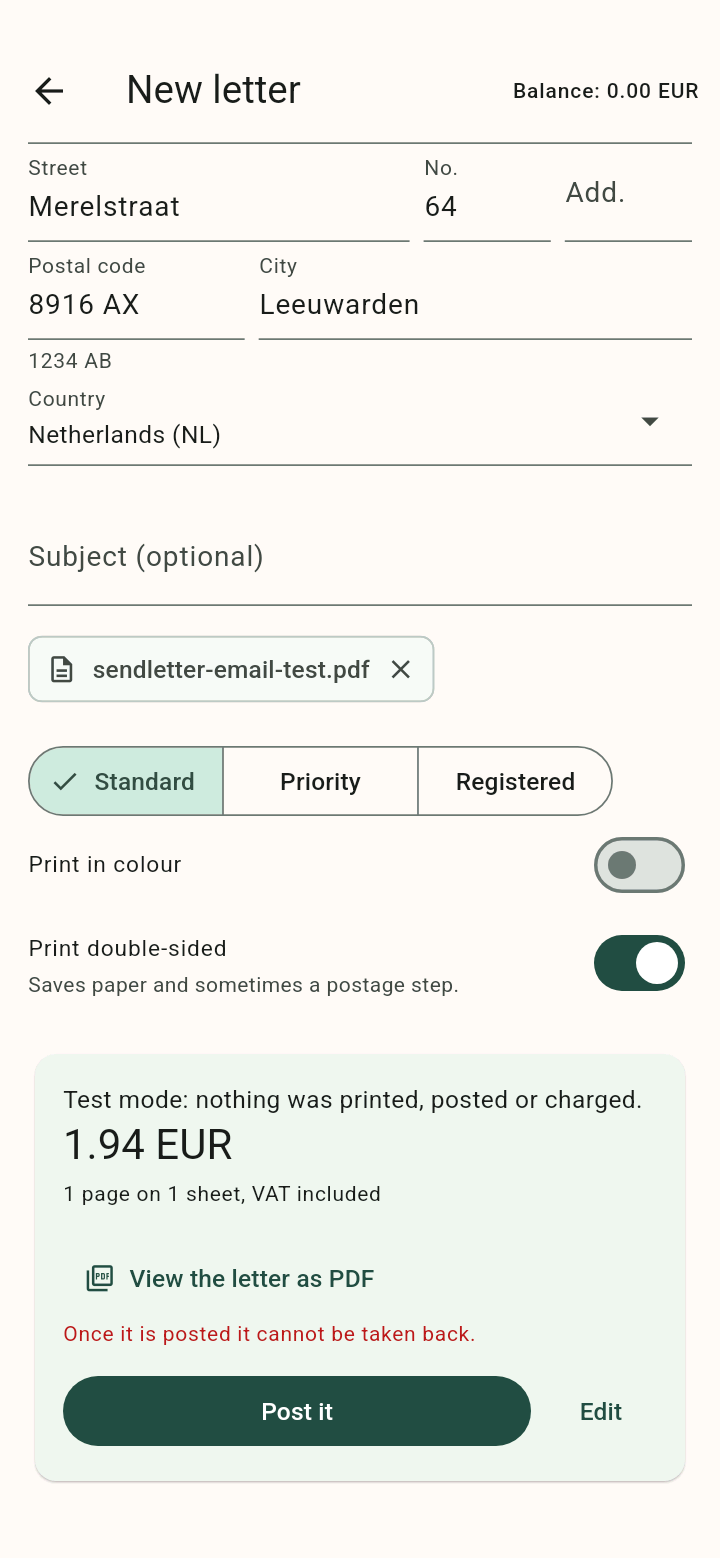
Write a letter on your Android phone, select a PDF or photograph paper pages. Check the prepared PDF and exact price before confirming that it should be posted.
Diese Seite ist auf Englisch.
Was Sie damit tun können
•Write a new letter without uploading a file.
•Combine photographed pages into one PDF, or select an existing PDF through the Android file picker.
•Review the price and follow your letters from the same account.
Verbinden
1The Android app is not yet available for public installation. You can already write and send letters in your mobile browser using the link below.
2In the app, sign in with your SendLetter account and approve the connection in the browser. Return to SendLetter when sign-in finishes.
3Choose New letter and check the complete recipient and return addresses, including the separate house number and destination country.
4Write your letter, choose Send a file for a PDF or image, or choose Scan a document to take a photo of each page. Check the thumbnails and remove unclear photos before selecting Use pages.
5Choose the delivery and printing options, then Check the price. Open View the letter as PDF and check the addresses, every page and the exact total.
6Choose Post it only after checking the prepared letter. If you change its content or options, check the new price before confirming again.
7Return to the letter list to follow its status. Test mode simulates the process without printing, posting or charging.
Photographed pages are fitted to A4. There is no automatic perspective correction: keep the phone parallel to the paper and use even lighting. Public installation will be linked here when available.
Examples from the tested integration
The Android app after selecting a PDF through the system file picker. Review the PDF and exact total before choosing Post it. This screenshot uses test mode.